Give a product launch a little movement before planning a full shoot. Start with a clean packshot, add a gentle shift in light or viewpoint, and use the clip to explore a campaign direction.

Maya EllisE-commerce Art Director
Bring your photos to life with AI Image to Video. Explore expressive character motion, cinematic camera moves, and atmospheric effects that give still images a new dimension. Turn portraits, product shots, and landscapes into short clips for creative storytelling, social posts, and visual concepts.
A glance, a small smile, or a breeze through loose fabric can give a portrait a sense of personality. Explore short character moments for personal storytelling, editorial concepts, and social content, with the person at the center of the shot.
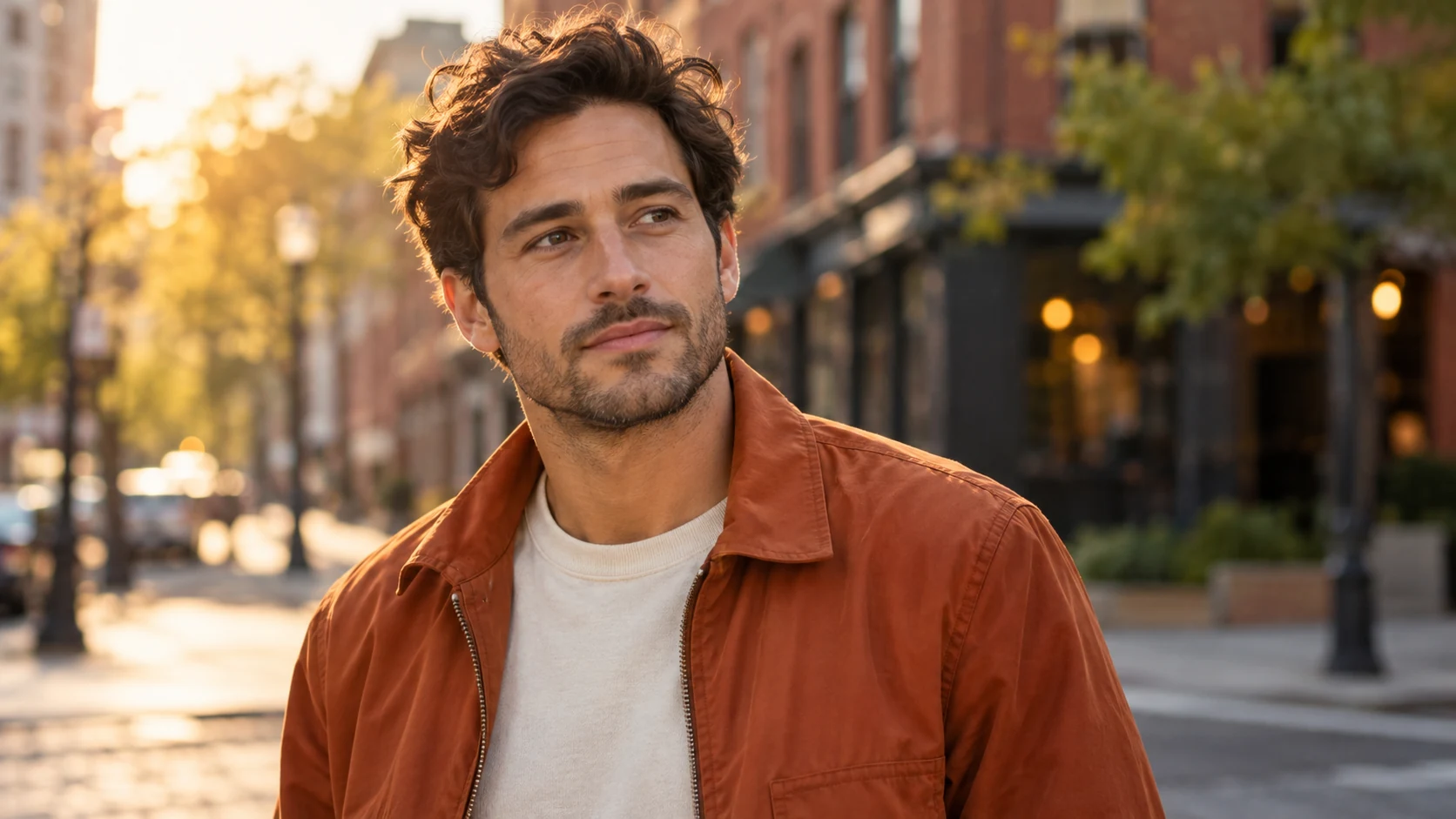
Use AI Image to Video to make light, texture, and form part of your product story. Moving reflections and a measured change of viewpoint can turn a still product image into a short visual showcase for launch concepts, storefront content, or campaign moodboards.
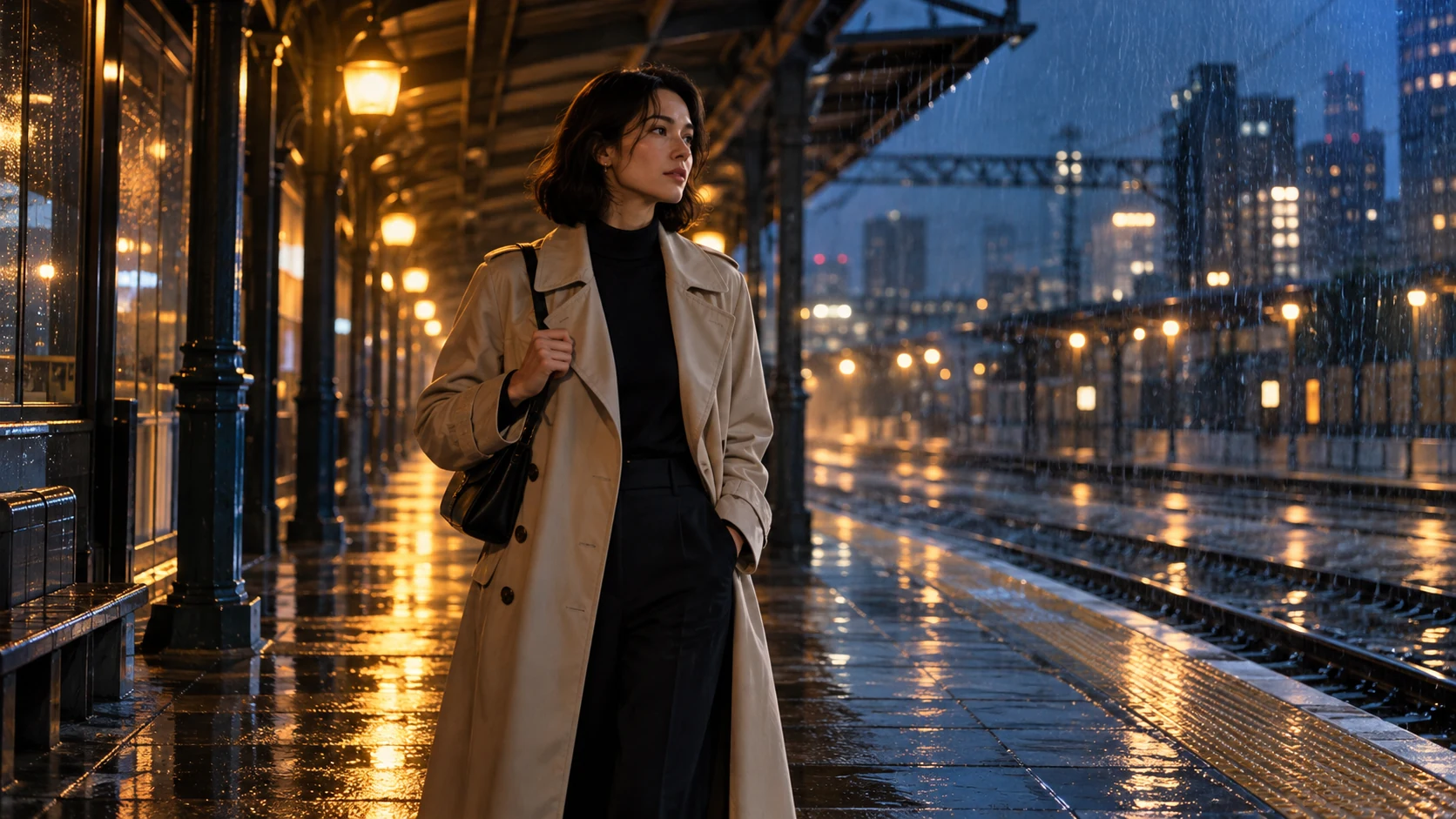
Keep a person at the heart of a scene while light, weather, and surrounding details shape its mood. A quiet pause on a rainy platform can become a cinematic character-led moment, with subtle movement adding tension, warmth, or anticipation around the subject.
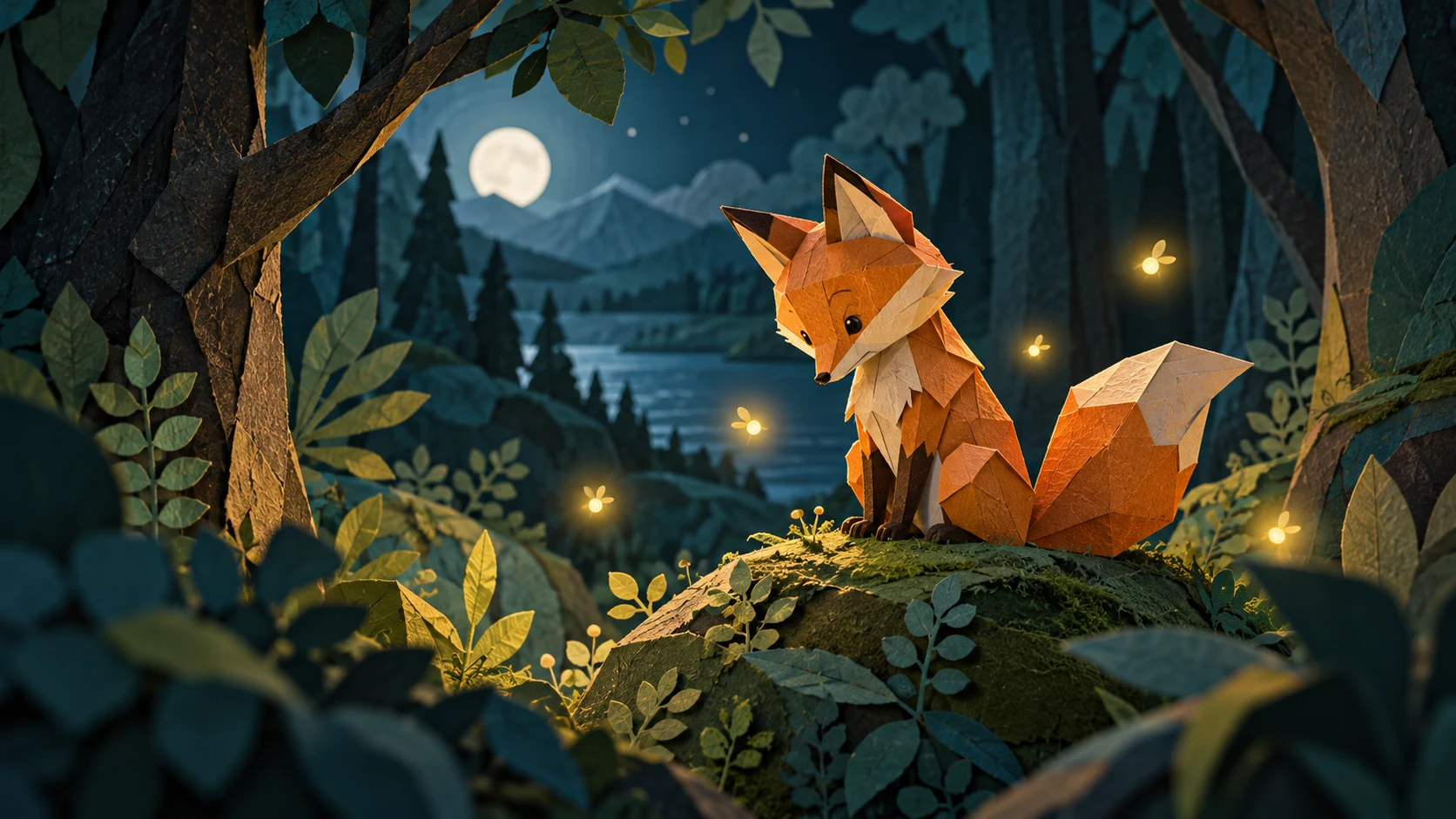
AI Image to Video gives drawn characters and imagined worlds a little room to move. Small gestures, drifting details, and layered depth can extend the mood of an illustration into a short animated concept, while keeping its original visual style at the center of the result.
Upload a JPG or PNG with a clear subject. A portrait, product photo, or illustration can be the starting point for your clip.
Describe the action and camera movement, then choose a model, clip length, and resolution. Set audio where supported and check the credit cost.
Generate your clip with AI Image to Video. Preview the result, download it, or refine the prompt to try a different direction.
Give the clip one focal moment: a person looking up, a product catching the light, or a drawn character moving.
Say how fast the action unfolds and how the camera should behave. Choose a steady view or one simple camera move.
Identify the details you want to preserve, such as facial features, product shape, clothing, or the style of an illustration.
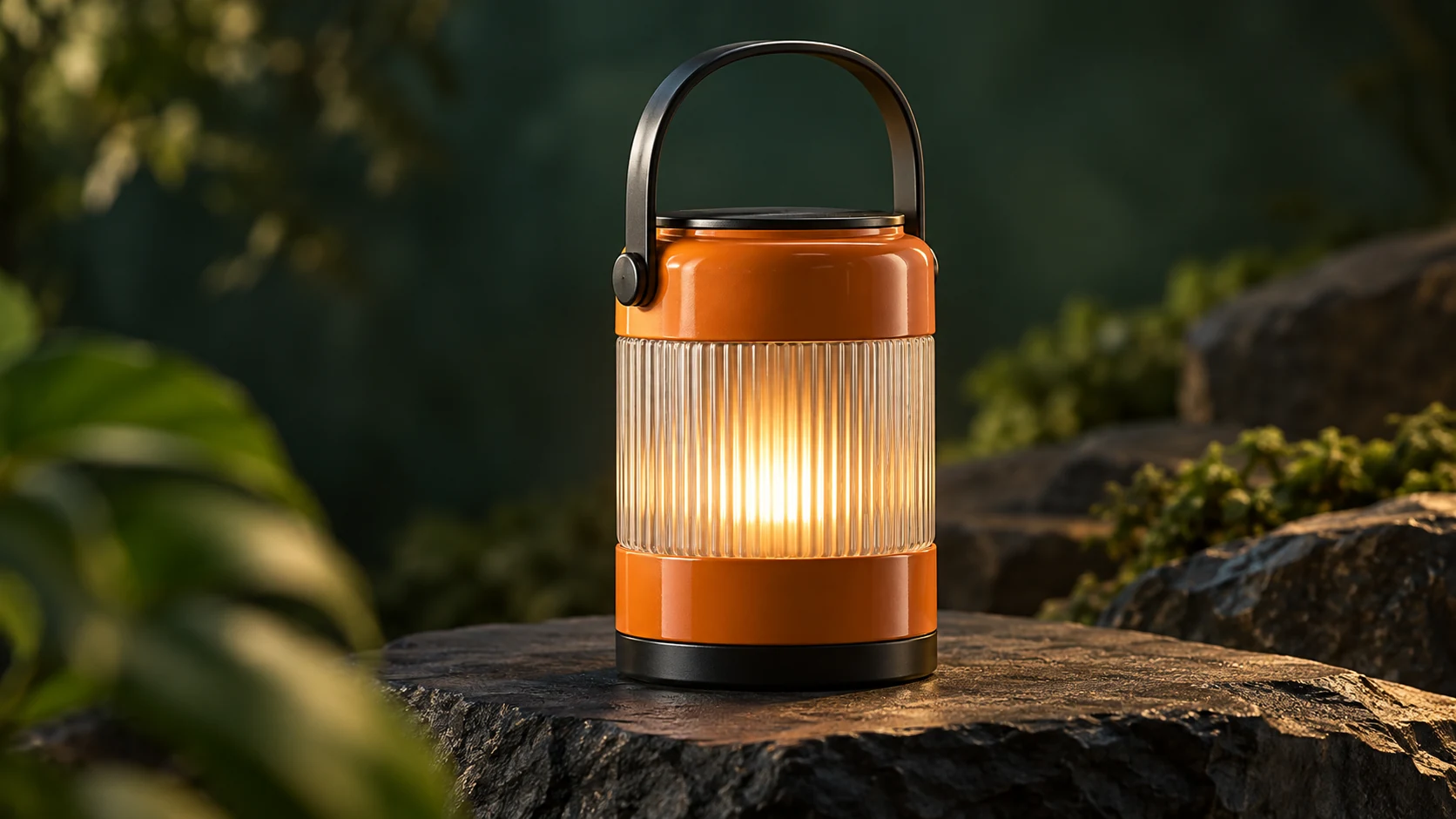
The orange lantern stays upright on the stone. Slowly slide the camera to the right as its warm light brightens. Let the foreground leaves drift gently. Keep the handle, ribbed glass, and product proportions consistent. One continuous shot, no added labels or objects.
Creative starting points for everyday projects, illustrated with creator profiles and AI-generated portraits.
Give a product launch a little movement before planning a full shoot. Start with a clean packshot, add a gentle shift in light or viewpoint, and use the clip to explore a campaign direction.
Build a quick opening beat around one striking frame with AI Image to Video. A single gesture or moving detail can set up a vertical teaser, leaving space for captions and the next cut.

Let the outfit carry the movement: a sleeve catching the breeze, fabric settling, or a small turn toward the light. Keep the pose simple so the garment stays the focus.

Turn cover artwork into a moving visual for a release concept. Let background lights pulse or illustrated elements drift, then pair the clip with your track in the edit.

Add a sense of time to a room concept with moving daylight, a shifting curtain, or a gentle camera push. A short clip can help communicate the mood of a space.

Use AI Image to Video to explore a character introduction from one piece of concept art. Try a small expression change and a slow reveal of the setting to discuss the scene’s tone.

Upload one JPG or PNG image up to 10 MB to get started with AI Image to Video. A clear portrait, product photo, or illustration makes a useful starting point. The uploader checks image dimensions and proportions before generation.
For AI Image to Video, compare the models by their available controls and quoted credit cost. Duration, resolution, and aspect ratio depend on the selected model. Review the updated options and cost whenever you switch models or change a setting.
Some models generate sound with every clip; others let you switch it on or off. Check the selected audio option and describe any desired ambience in your prompt.
Trial access, when available, is subject to eligibility and usage limits. Each generation uses the quoted credits for its model and settings. Review the quoted cost and your available balance before generating. Viewing the public examples does not spend credits.
Faces, shapes, and small details can change during generation. Review the clip and confirm you have the rights and permissions needed for the source image and intended use. Civon Terms of Service and the selected model provider’s terms apply.
Preview or download clips from Recent Video Tasks. Browser history keeps up to eight recent tasks for 24 hours. Guest results keep their original expiry when linked and are not added to My Creations. For new account tasks, the auto-save setting controls My Creations storage; unsaved results last up to 24 hours, while saved creations follow your plan’s retention.
Uploads and results are not automatically posted to a public gallery. Civon uses private storage and temporary access links. Configured services process the source image, prompt, and settings for generation and content review.
Create Your Next Scene with Civon
Bring a character moment, a product idea, or an illustrated world into motion. Explore a fresh creative direction with AI Image to Video.
Start Creating a Video